Understanding Claude Code hooks documentation
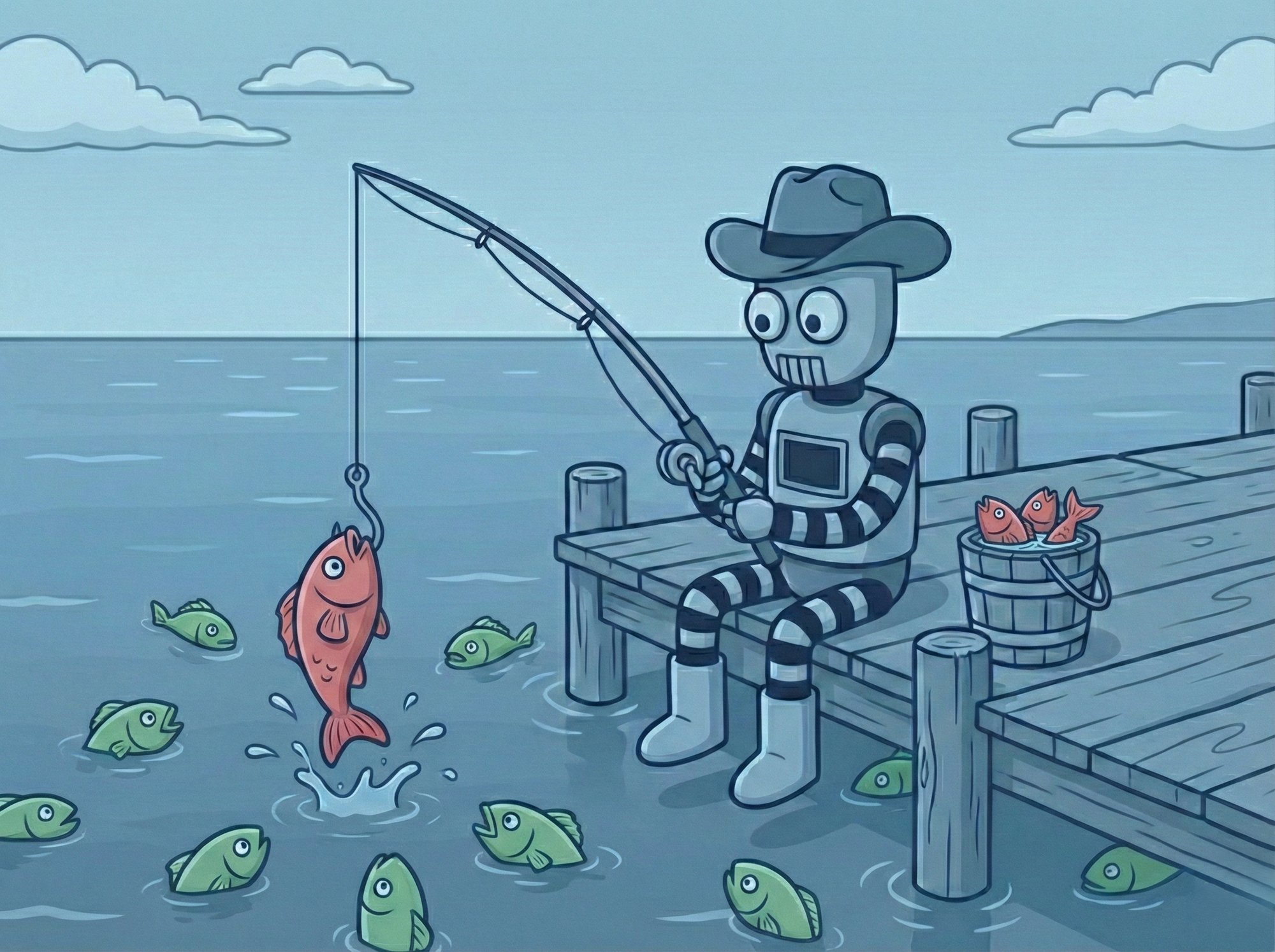
Automation in AI-driven development has become essential for teams looking to maintain consistency without constant manual oversight. Here at PromptLayer, we see firsthand how developers struggle to balance flexibility with guardrails when working alongside AI coding assistants. Claude Code's Hooks feature offers a compelling approach - giving you deterministic control over what the AI agent does at key moments in its workflow. Understanding the documentation behind this feature is the difference between hooks that save hours and hooks that silently break your builds.
What hooks actually do in Claude Code
Claude Code is Anthropic's terminal-based AI coding tool that helps you write, edit, and manage code through natural language. It operates as an agentic assistant, meaning it can execute tasks, run commands, and modify files autonomously within your project.
Hooks are user-defined event handlers that run shell commands or scripts at specific points in Claude Code's lifecycle. Think of them as automated triggers - they fire when particular events occur, regardless of what the AI "decides" to do. This is crucial: hooks don't depend on the model remembering to format code or run tests. They execute every single time their conditions are met.
The key building blocks
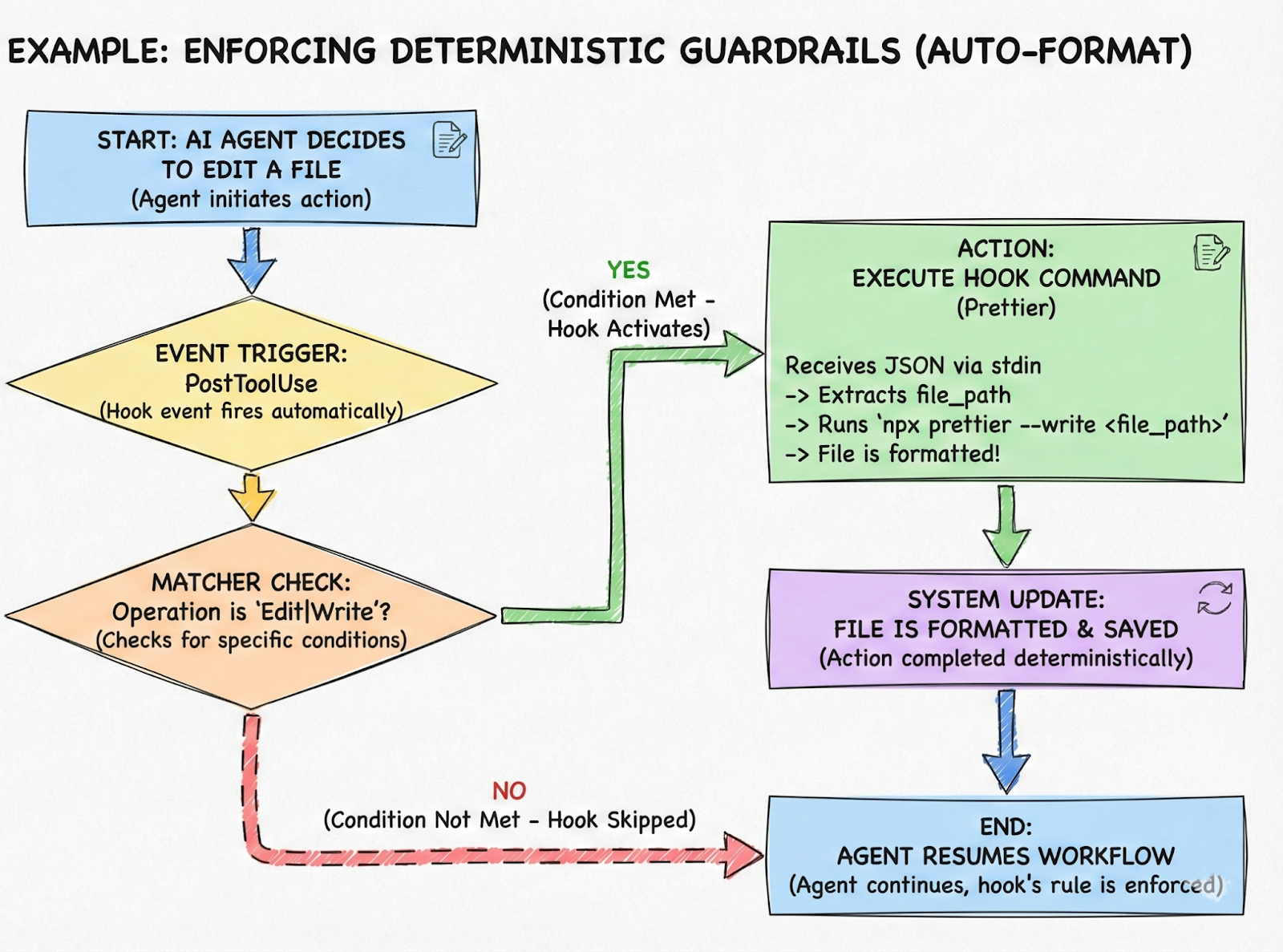
Every hook configuration consists of three components:
- Event: The lifecycle moment when the hook fires (SessionStart, PreToolUse, PostToolUse, Notification, Stop, and others)
- Matcher: An optional regex filter that narrows when the hook runs - for example, matching only "Bash" tool calls or only "Edit|Write" operations
- Action: What actually happens - usually a shell command, but can also be a prompt sent to a lightweight Claude model for evaluation
The event taxonomy includes critical moments throughout a session. SessionStart fires when you begin working. PreToolUse fires before Claude executes any tool. PostToolUse fires after a tool completes. Notification fires when Claude needs your attention. Stop fires when Claude believes it has finished responding. There are also events for subagent spawning and completion in more complex workflows.
When hooks execute, they receive JSON data via stdin containing context about the event - session ID, working directory, tool name, and tool input parameters. Your script parses this data and decides what to do.
Setting up hooks in practice
Hooks live in JSON configuration files. You have several options for where to place them:
- User-wide: ~/.claude/settings.json applies hooks to all your Claude Code projects
- Project-specific: .claude/settings.json in your repo root (shareable via version control)
- Local overrides: .claude/settings.local.json for personal tweaks that shouldn't be committed
- Managed policies: Organization-level hooks for enterprise environments
The interactive approach is typing /hooks in Claude Code's CLI, which walks you through creating hooks step by step. For more control, edit the JSON directly:
{
  "hooks": {
    "PostToolUse": [
      {
        "matcher": "Edit|Write",
        "hooks": [
          {
            "type": "command",
            "command": "jq -r '.tool_input.file_path' | xargs npx prettier --write"
          }
        ]
      }
    ]
  }
}
This example runs Prettier on any file Claude modifies. The matcher targets edit and write operations specifically, and the command extracts the file path from the JSON input and pipes it to the formatter.
Common use cases include:
- Desktop notifications when Claude needs input (using osascript on macOS or notify-send on Linux)
- Automatic code formatting after file modifications
- Blocking dangerous commands like rm -rf before they execute
- Protecting sensitive files from AI edits
- Enforcing tests before allowing commits
- Re-injecting context after conversation compaction
Security matters more than you think
Hooks run with your full user permissions. There is no sandbox. A misconfigured hook can delete files, expose secrets, or execute arbitrary code. Anthropic's documentation explicitly warns about this.
Best practices to follow:
- Validate and sanitize any input from Claude's JSON before using it in commands
- Always quote shell variables ("$VAR" not $VAR) to prevent injection
- Use absolute paths and environment variables like $CLAUDE_PROJECT_DIR
- Skip directories like .git/ and files containing secrets
- Never add hooks from untrusted sources
- Test hooks thoroughly before relying on them in production workflows
For enterprises, the allowManagedHooksOnly setting restricts users to organization-approved hooks only. This prevents well-intentioned but risky developer experimentation.
How Claude Code compares to other platforms
OpenAI's function calling and Google's Gemini tools take a fundamentally different approach. Those systems let the model decide when to invoke functions - the AI outputs a JSON request, your server executes it, and returns results. The model drives the process.
Claude Code hooks invert this relationship. Hooks fire based on system events, not model decisions. The AI doesn't request a hook - the hook intercepts the AI. This means hooks can enforce rules the model might ignore and prevent actions the model might attempt.
Function calling extends what an AI can do. Hooks constrain and supplement what an AI does. Both serve important purposes, but they solve different problems. If you need guaranteed execution of certain logic at specific moments, hooks provide that determinism in ways that prompt-based instructions cannot.
Turn hooks into guardrails you can trust
Hooks are where Claude Code stops being “helpful” and starts being reliable - the deterministic layer that formats, tests, and blocks risky behavior whether the model remembers to or not.
Treat them like production code. Keep them small, explicit, and security-first (they run with your user permissions - no sandbox). Put the non-negotiables in project .claude/settings.json so the whole team shares the same guardrails, and lean on claude --debug when something doesn’t fire the way you expect.
Pick one hook this week that buys back real time - auto-format on PostToolUse, deny rm -rf on PreToolUse, or gate git commit until tests are green - and ship it. Once you feel that “it runs every time” click into place, you’ll stop babysitting the agent and start designing the workflow.