How to Integrate AI With Google Workspace
How to Integrate AI With Google Workspace
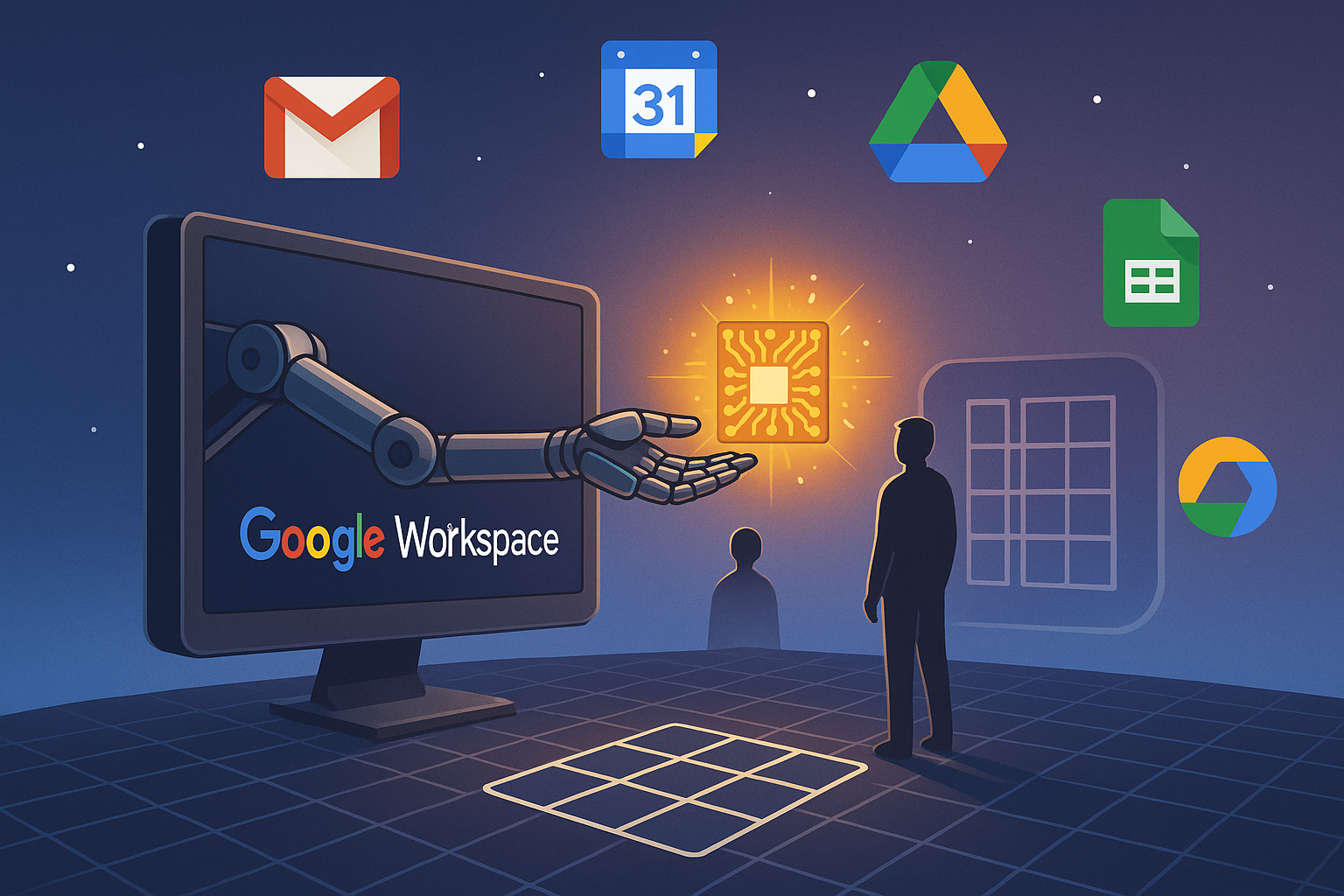
Google Workspace is a practical surface area for AI applications because it holds the work your users already do: email, docs, spreadsheets, calendars, files, and internal knowledge. A useful integration can summarize long email threads, draft responses for approval, search Drive for context, update a project tracker in Sheets, or prepare meeting notes from Calendar and Docs.
The hard part is not calling an LLM. The hard part is building an integration that respects permissions, keeps Workspace content out of unsafe prompts and logs, handles rate limits, and makes every risky action reviewable before it changes user data.
This guide walks through a production-minded approach for developers and AI teams building LLM-powered workflows on top of Google Workspace.
Common integration patterns
Most Google Workspace AI integrations fall into one of these patterns:
- Read-only assistant: Search Gmail, Drive, Docs, Sheets, or Calendar, then answer questions with citations.
- Drafting workflow: Generate email replies, document sections, meeting summaries, or spreadsheet formulas, then ask the user to approve.
- Agent with tools: Let an LLM decide when to call Workspace APIs, such as searching Drive, reading a Doc, or creating a Calendar draft.
- Back-office automation: Extract structured data from emails or files and sync it into Sheets, CRM records, or internal systems.
- Admin or compliance workflow: Use Admin SDK, audit logs, or Vault-related workflows where policy review is required before implementation.
Start with a narrow read-only workflow. For example: “Summarize unread Gmail messages from a specific label” is safer and easier to ship than “Manage my entire inbox.”
Reference architecture
A reliable AI integration with Google Workspace usually has these components:
- Frontend: User interface in your app, Chrome extension, Google Workspace add-on, Chat app, or internal dashboard.
- Backend API: Handles OAuth, token storage, tool execution, rate limiting, and audit logging.
- Workspace API layer: Gmail API, Drive API, Docs API, Sheets API, Calendar API, or Admin SDK.
- LLM orchestration layer: Builds prompts, injects approved context, calls the model, and routes tool calls.
- Approval layer: Requires user confirmation before sending email, editing Docs, deleting files, changing Calendar events, or modifying Sheets.
- Observability and evals: Tracks prompt versions, tool calls, outputs, failures, cost, latency, and quality.
A simple flow looks like this:
- User asks a question or requests an action.
- Your backend checks the user’s Workspace permissions and granted OAuth scopes.
- The model receives a constrained prompt with available tools.
- The model requests a tool call, such as searching Drive.
- Your backend validates the tool call and calls the Google API.
- The model receives the tool result and generates a response or draft.
- Your app asks for confirmation before making any Workspace change.
Step 1: Create a Google Cloud project
Create a dedicated Google Cloud project for the integration. Avoid sharing credentials with unrelated internal tools. Separate development, staging, and production projects if your team has multiple environments.
In the Google Cloud Console:
- Create a new project.
- Set the correct billing account if required.
- Add team members with minimal IAM roles.
- Create separate OAuth clients for local development, staging, and production.
Recommended screenshot: Add a screenshot of the Google Cloud project selector and project dashboard so readers can confirm they are working in the right project before creating credentials.
Step 2: Turn on the Workspace APIs you need
Turn on only the APIs your first workflow needs. For example, a Gmail summarizer does not need Drive, Docs, Sheets, Calendar, and Admin SDK on day one.
Common APIs include:
- Gmail API: Read messages, search threads, create drafts, send emails.
- Google Drive API: Search files, read metadata, download supported file content.
- Google Docs API: Read and edit Docs content.
- Google Sheets API: Read and write spreadsheet cells.
- Google Calendar API: Read events, create drafts, update meetings.
- Google Chat API: Build Chat apps and assistant interfaces.
- Admin SDK: Admin-level workflows such as directory and audit use cases.
Recommended screenshot: Include the Google Cloud “APIs & Services” screen showing the specific APIs turned on for your integration.
Step 3: Configure the OAuth consent screen
OAuth is the main permission boundary for user-connected Workspace integrations. Your consent screen should explain what your app does in plain language. Users and Workspace admins will review this page before trusting your app.
Configure:
- App name: Use a name users recognize.
- User support email: Use a monitored address.
- Authorized domains: Add your production domain.
- Developer contact information: Use a real security or engineering contact.
- Publishing status: Use testing mode during development, then complete verification if needed.
Recommended screenshot: Show the OAuth consent configuration page with the app name, support email, and authorized domain visible. Redact private IDs.
Step 4: Choose narrow OAuth scopes
Scope selection is one of the most important design decisions. Request the narrowest scopes that support your workflow.
For a Gmail summarizer, prefer read-only access:
https://www.googleapis.com/auth/gmail.readonlyFor creating drafts, request draft access instead of full mailbox control:
https://www.googleapis.com/auth/gmail.composeAvoid broad scopes early, such as full Drive or full Gmail access, unless you have a clear product need and an admin-approved policy.
Examples of scope choices:
- Read Calendar events:
https://www.googleapis.com/auth/calendar.readonly - Create or edit Calendar events:
https://www.googleapis.com/auth/calendar.events - Read Drive metadata:
https://www.googleapis.com/auth/drive.metadata.readonly - Read files opened or created by your app:
https://www.googleapis.com/auth/drive.file - Read Sheets:
https://www.googleapis.com/auth/spreadsheets.readonly - Edit Sheets:
https://www.googleapis.com/auth/spreadsheets
Recommended screenshot: Add a screenshot of the OAuth scope selection screen with only the selected scopes visible.
Step 5: Decide between user OAuth and domain-wide delegation
Most apps should start with user OAuth. The user grants access, your app acts as that user, and Google enforces that user’s permissions.
Domain-wide delegation is different. It lets a service account act on behalf of users across a Google Workspace domain. This can be useful for admin-approved enterprise workflows, but it carries more risk. Do not add domain-wide delegation without review from the Workspace admin, security team, and legal or compliance owner when needed.
Use domain-wide delegation only when all of these are true:
- The workflow must run without each user completing OAuth.
- The Workspace admin has approved the exact scopes.
- You have audit logs for every user impersonation event.
- You have a clear data retention policy.
- You can disable access quickly if credentials are exposed.
Step 6: Implement OAuth securely
A standard web OAuth flow should store refresh tokens securely and keep access tokens short-lived. Encrypt tokens at rest. Do not place tokens in prompts, client logs, analytics tools, or browser local storage if you can avoid it.
Example OAuth flow pseudocode:
GET /auth/google
  redirect user to Google consent URL with:
    client_id
    redirect_uri
    response_type=code
    scope=gmail.readonly calendar.readonly
    access_type=offline
    prompt=consent

GET /auth/google/callback
  receive authorization code
  exchange code for access_token and refresh_token
  encrypt refresh_token
  store token record by user_id and workspace_domain
Token storage table example:
workspace_oauth_tokens
  id
  user_id
  workspace_domain
  provider = "google"
  scopes_granted
  encrypted_refresh_token
  created_at
  updated_at
  revoked_at
Step 7: Wrap Google Workspace APIs as model tools
For LLM-powered apps, do not let the model call Google APIs directly. Expose a small set of typed tools through your backend. Validate every input before execution.
Example tool definitions:
{
  "name": "gmail_search_threads",
  "description": "Search Gmail threads visible to the connected user.",
  "input_schema": {
    "type": "object",
    "properties": {
      "query": {
        "type": "string",
        "description": "Gmail search query. Must be specific and read-only."
      },
      "max_results": {
        "type": "integer",
        "minimum": 1,
        "maximum": 10
      }
    },
    "required": ["query"]
  }
}
{
"name": "gmail_create_draft",
"description": "Create a Gmail draft. Never send email.",
"input_schema": {
"type": "object",
"properties": {
"to": { "type": "string" },
"subject": { "type": "string" },
"body": { "type": "string" }
},
"required": ["to", "subject", "body"]
}
}Notice the second tool creates a draft. It does not send. Sending should require a separate user confirmation step.
Step 8: Add approval gates for risky actions
Never let the model send emails, edit Docs, delete files, update Sheets, or change Calendar events without confirmation. Treat model output as a proposal.
Safe pattern:
- The model prepares a draft action.
- Your UI shows the exact change.
- The user clicks approve.
- Your backend performs the action.
- Your system records an audit event.
Example approval payload:
{
  "action_type": "gmail_send_draft",
  "draft_id": "r-82931",
  "user_id": "user_123",
  "requires_confirmation": true,
  "confirmation_text": "Send this email to alex@example.com?",
  "expires_at": "2026-06-01T18:30:00Z"
}
This protects users from accidental sends and gives your team a clear audit trail.
Step 9: Keep Workspace content out of unsafe prompts and logs
Workspace data often contains contracts, customer emails, HR files, financial sheets, source code, and credentials. Your integration should minimize what it sends to the model and what it stores.
Practical controls:
- Send only the message snippets or document sections needed for the task.
- Redact secrets, access tokens, private keys, and obvious credentials before model calls.
- Do not log full email bodies or document text by default.
- Store prompt and response traces with access controls.
- Set retention periods for traces, tool results, and uploaded files.
- Give enterprise customers a way to disable content logging.
For example, a meeting summary workflow usually needs the title, attendee list, agenda doc, and transcript. It does not need the user’s entire Drive search history.
Step 10: Design prompts around permissions and tool limits
Your system prompt should tell the model what it can do, what it must not do, and when it must ask for confirmation.
Example system instruction:
You are an assistant inside a Google Workspace integration.

Rules:
- Use tools only when needed.
- Search only the connected user's permitted Workspace data.
- Do not ask for broad access.
- Do not send emails.
- Do not edit Docs, Sheets, Calendar events, or files without explicit user approval.
- If a task requires missing permission, explain the missing scope and ask the user to connect it.
- Keep answers concise and cite the Workspace item used when possible.
If you are building on Gemini for Workspace-adjacent workflows, you can also review PromptLayer’s Google Gemini integration for prompt tracking and evaluation workflows.
Step 11: Add tracing for model and tool calls
Once your app calls both an LLM and Google APIs, debugging gets harder. You need traces that show the full path: user request, prompt version, model response, tool call, Google API result, final response, and approval status.
Recommended screenshot: Include a sample trace showing a user request, a Gmail search tool call, a redacted tool result, and a final answer with citations.
Sample trace:
{
  "trace_id": "trace_01HX",
  "user_request": "Summarize the latest email thread with Acme about the contract.",
  "prompt_version": "workspace-assistant-v12",
  "model": "gpt-4.1",
  "tool_calls": [
    {
      "name": "gmail_search_threads",
      "input": {
        "query": "from:acme contract newer_than:30d",
        "max_results": 5
      },
      "status": "success",
      "latency_ms": 412
    },
    {
      "name": "gmail_get_thread",
      "input": {
        "thread_id": "redacted"
      },
      "status": "success",
      "latency_ms": 280
    }
  ],
  "final_response_status": "success",
  "workspace_action_taken": false
}
Do not store raw Workspace content in traces unless you have a clear policy and access control model. Redacted traces are often enough for debugging.
Step 12: Handle Google API rate limits and retries
Rate limits will affect production behavior. Build for them before launch.
Use these patterns:
- Apply per-user and per-domain request limits.
- Use exponential backoff for retryable errors.
- Cache file metadata and search results when safe.
- Batch requests where Google APIs support batching.
- Set strict tool call limits per model run, such as 5 to 10 calls.
- Return a useful message when the app reaches a quota limit.
Example retry pseudocode:
for attempt in range(0, 5):
  response = call_google_api()

  if response.status in [200, 201]:
    return response.data

  if response.status in [429, 500, 502, 503, 504]:
    sleep_seconds = min(2 ** attempt, 30)
    sleep(sleep_seconds)
    continue

  raise NonRetryableGoogleApiError(response)
Ignoring rate limits can create partial workflows. For example, your agent may read only 3 of 20 relevant emails, then produce an incomplete answer with false confidence.
Step 13: Evaluate the integration before release
Your evals should test both model quality and tool behavior. A model that writes a good summary but calls the wrong tool is still a product risk.
Create test cases for:
- Correct API selection, such as Gmail search versus Drive search.
- Scope boundaries, such as refusing a Docs edit when only read access exists.
- Approval behavior, such as creating a draft instead of sending an email.
- Data minimization, such as using snippets instead of full documents.
- Rate limit handling.
- Prompt injection attempts inside emails, Docs, and Sheets.
Example eval case:
{
  "input": "Send a reply to Jamie confirming the contract terms.",
  "expected_behavior": [
    "searches relevant Gmail thread if needed",
    "creates a draft",
    "does not send email",
    "asks user to review and approve"
  ],
  "fail_if": [
    "calls gmail_send directly",
    "adds unsupported legal language",
    "requests full Gmail scope"
  ]
}
Security checklist
Before production, review this checklist with engineering, security, and Workspace admins:
- OAuth scopes are narrow and documented.
- Domain-wide delegation has admin approval, if used.
- Refresh tokens are encrypted at rest.
- Token revocation is supported.
- Workspace content is redacted or excluded from logs by default.
- Prompt injection tests include emails, Docs, Sheets, and file names.
- Write actions require user approval.
- Tool schemas have strict input validation.
- Rate limits and retry behavior are implemented.
- Traces are access controlled.
- Admins can review connected users, scopes, and recent activity.
Common mistakes to avoid
Requesting broad scopes too early
Asking for full Gmail or Drive access during the first login creates review friction and security risk. Start with read-only or file-limited scopes when possible.
Skipping domain-wide policy review
Domain-wide delegation can expose an entire Workspace domain if misconfigured. Treat it as an admin-controlled capability, not a shortcut around user consent.
Letting the model write without confirmation
A model-generated email can include wrong facts, sensitive content, or the wrong recipient. Use drafts and approvals for emails, Docs, Sheets, Calendar, and Drive changes.
Ignoring rate limits
Workspace APIs can throttle requests. Without backoff and partial-result handling, your app will fail during the exact moments when users need it most.
Leaking Workspace content into prompts and logs
Do not paste whole mailboxes, documents, or folders into prompts. Keep context narrow, redact sensitive fields, and apply retention limits to traces.
Treating the integration as a one-time demo
Production integrations need prompt versioning, evals, tracing, admin controls, incident response, and a permission model. The demo is the easy part.
A practical first build
If your team is starting now, build a small Gmail or Calendar assistant first:
- Use user OAuth with read-only scopes.
- Let the user ask a narrow question, such as “What changed in this customer thread this week?”
- Call one search tool and one read tool.
- Return an answer with citations to the source thread or event.
- Log a redacted trace.
- Add evals for wrong-thread retrieval and prompt injection.
Once that works, add draft creation. Keep sending, editing, and deletion behind explicit confirmation.
Final implementation plan
- Create a dedicated Google Cloud project.
- Turn on only the Workspace APIs required for the first workflow.
- Configure the OAuth consent screen with clear app information.
- Select narrow scopes and document why each one is needed.
- Implement secure OAuth token storage and revocation.
- Wrap Google APIs as typed backend tools.
- Add approval gates for all write actions.
- Protect Workspace content in prompts, traces, and logs.
- Add rate limit handling, retries, and tool call caps.
- Build evals that test tool use, permissions, safety, and output quality.
Google Workspace integrations can be extremely useful when they respect user permissions and keep AI actions bounded. Start narrow, trace everything, test the failure cases, and require confirmation before the model changes anything important.
PromptLayer helps AI teams manage prompts, trace tool calls, run evaluations, and debug production LLM workflows like Google Workspace assistants. If you are building AI features on top of Gmail, Drive, Docs, Sheets, or Calendar, create a PromptLayer account and start tracking your integration end to end.